

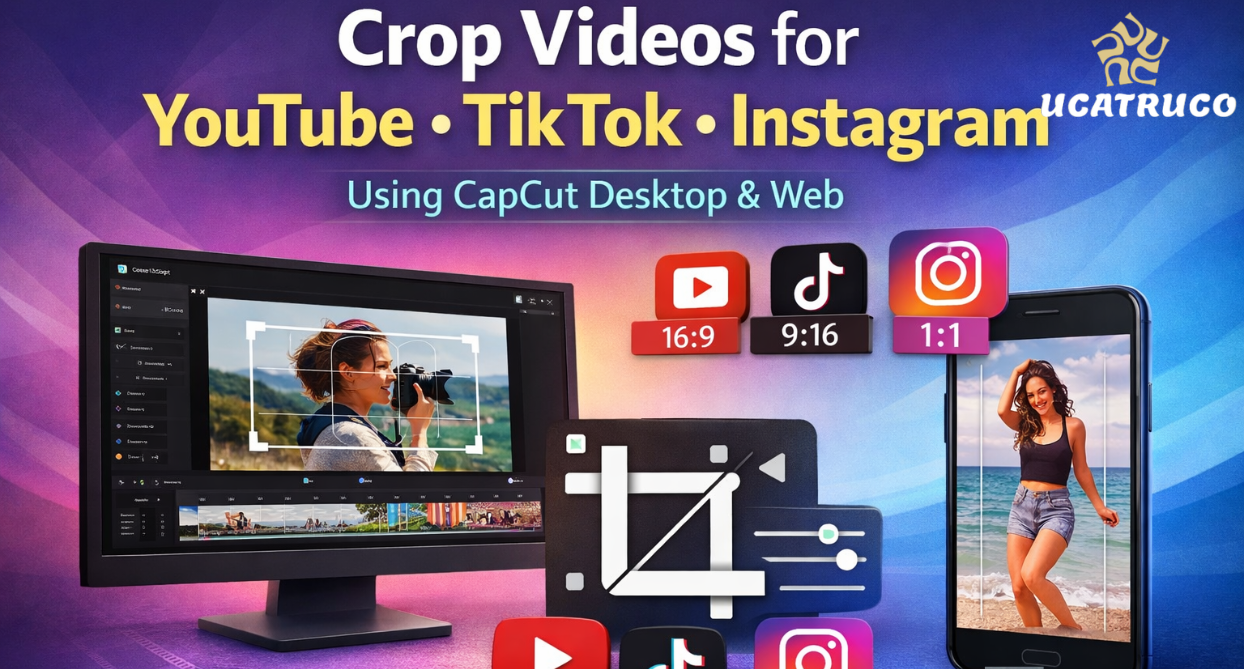
All video platforms require specific aspect ratios and formats to display content correctly. A crop video that looks perfect on YouTube may appear squashed or poorly framed on TikTok or Instagram. To ensure your content looks professional across all platforms, precise video cropping is essential. CapCut Desktop provides robust tools that allow creators to crop and reframe videos efficiently while maintaining high quality for multiple platforms.
CapCut Desktop: Designed for Multi-Platform Video Editing
CapCut Desktop is a comprehensive video editing solution created to meet the demands of modern content creators. Combining advanced editing features, AI-assisted tools, and an intuitive interface, it is suitable for both beginners and professional editors. CapCut Desktop allows users to create videos in various orientations, vertical, horizontal, or square, while controlling resolution, framing, and export options.
One of CapCut Desktop’s key advantages is its unified workflow. Creators can edit videos, apply filters, and manage multiple formats in a single environment. For example, users can start with thumbnail creation in the Photo Editor, then seamlessly move into video editing with tools like Crop Video. This smooth workflow ensures brand consistency and efficiency.
Additionally, CapCut offers a web-based version that allows quick, platform-specific cropping directly in the browser, without installation.
CapCut Web: Quick Cropping for Platform-Specific Formats
CapCut Web is ideal for creators who need to trim and adjust videos for multiple social networks. Accessible directly from a browser, it provides preset aspect ratios for YouTube, TikTok, and Instagram. This makes it particularly useful for last-minute uploads, fast edits, or working on devices without the desktop software installed.
The following section explains how to crop videos for different platforms using CapCut Web in a simple, step-by-step process.
How to Crop Videos for YouTube, TikTok, and Instagram Using CapCut Web
With the Crop Video feature on CapCut Web, creators can easily adapt a single video for multiple platforms, ensuring key content remains in focus.
Step 1: Create an Account
Visit the CapCut homepage and click Sign Up for Free. You can register using Google, Facebook, or TikTok accounts. Once logged in, you’ll access the CapCut Web editing workspace, ready to crop videos directly in your browser.
Step 2: Upload Your Video and Select an Aspect Ratio
Upload your video from your device, Google Drive, Dropbox, or a QR code. Select the aspect ratio that matches your target platform: 16:9 for YouTube, 9:16 for TikTok, or 1:1 or 4:5 for Instagram. CapCut Web allows you to quickly switch aspect ratios, making it easy to prepare a single video for multiple platforms.
Step 3: Crop, Adjust, and Export
Select the video in the timeline. A white border will highlight the selection. Click the Crop icon to adjust the frame, keeping important elements like faces, text, or visuals centered. Once satisfied, export the video to your device or upload directly to YouTube, TikTok, or Instagram.
Platform-Specific Cropping Tips
Proper cropping ensures videos appear natural on each platform. For YouTube, horizontal framing works best, giving more background visibility. TikTok requires vertical framing to keep the subject centered. Instagram supports multiple formats, but vertical and square videos perform better in feeds and Reels.
CapCut makes it easy to reuse the same video clip, switch aspect ratios, and crop content to fit each platform perfectly.
Why CapCut Is Ideal for Multi-Platform Creators
CapCut’s ecosystem is highly flexible. CapCut Desktop offers advanced controls for complex projects, while CapCut Web enables quick, browser-based edits. This combination is ideal for creators who frequently publish content across multiple platforms.
Creators working with both images and videos benefit from CapCut’s integrated tools. Using the Photo Editor, images can be aligned with video formats and maintained in a consistent frame. This consistency enhances brand identity and improves overall content quality.
Desktop vs Web: Which Should You Use?
CapCut Desktop is perfect for lengthy or complex video projects requiring advanced features and precise control. CapCut Web is best for fast, platform-specific cropping and quick exports. Many creators use both, depending on the project requirements and workflow preferences.
See Also: Top Tips to Improve Your Aiming Skills in Free Fire Fast
Conclusion
Adapting videos for multiple platforms doesn’t have to be complicated. CapCut Desktop provides a professional foundation for video editing, while CapCut Web offers an efficient way to reframe content for YouTube, TikTok, and Instagram.
The Crop Video feature in CapCut Web makes it simple to maintain visual focus and ensure videos look professional across all platforms. Combined with the Photo Editor and other CapCut tools, creators can produce high-quality, consistent content for today’s multi-platform digital landscape.
